
Connect the television to a stable network, install a compatible player from its official app store, enter the details supplied by your authorised provider, reload the player and test live and on-demand playback.
What you need before starting
Prepare the television, remote and account information before opening the app store. This avoids repeatedly switching between screens while typing long details.
Never publish login details, playlist addresses, device keys or MAC information in screenshots.
Identify the operating system on your television
The television brand usually determines the app store and installation flow. App availability can still vary by model, software version and store region.
| Television | Common system | Where to install apps |
|---|---|---|
| Samsung Smart TV | Tizen | Samsung Apps |
| LG Smart TV | webOS | Apps or LG Content Store |
| Sony, TCL and selected Philips TVs | Google TV or Android TV | Google Play |
| Fire TV television | Fire OS | Amazon Appstore |
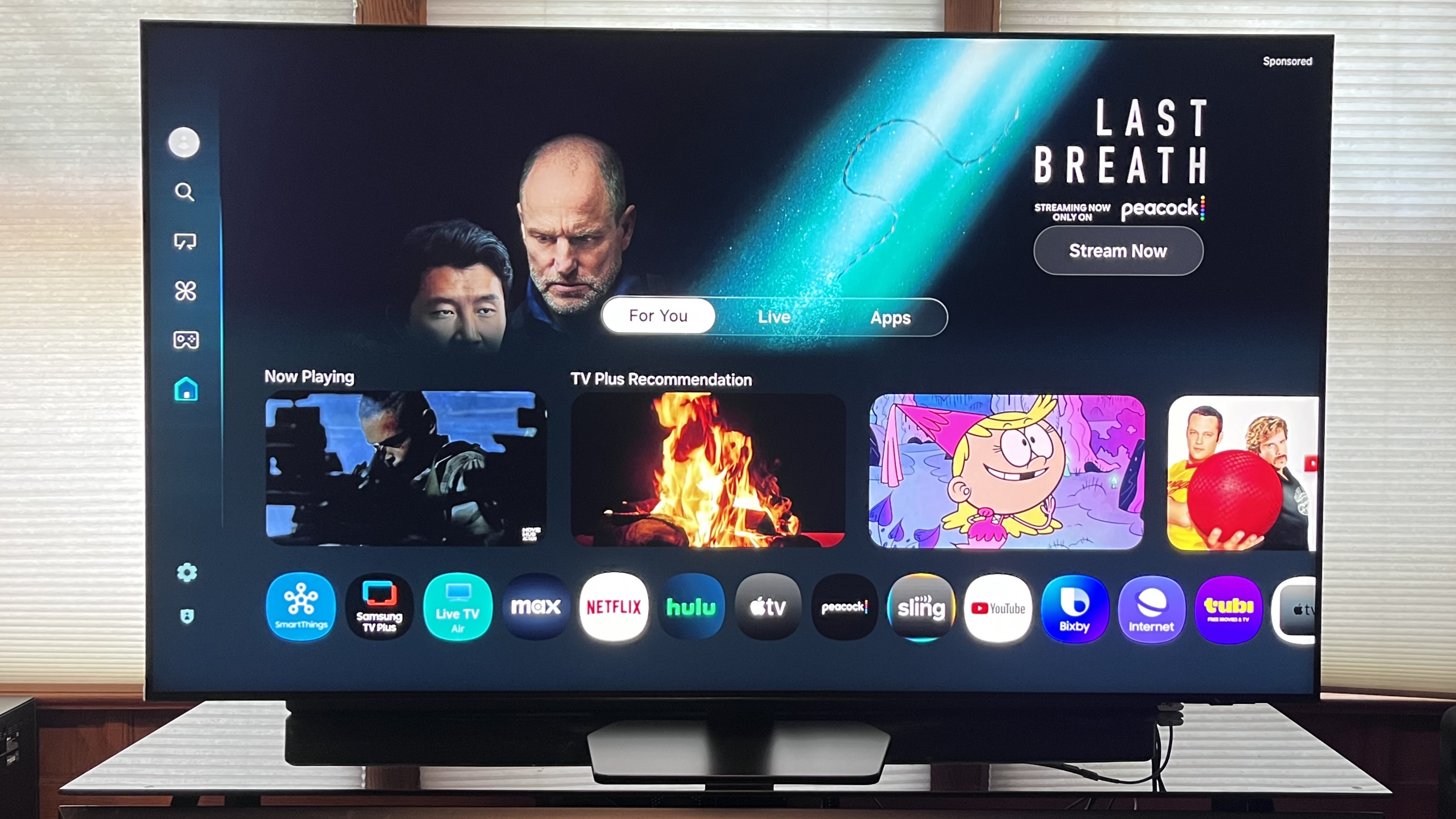
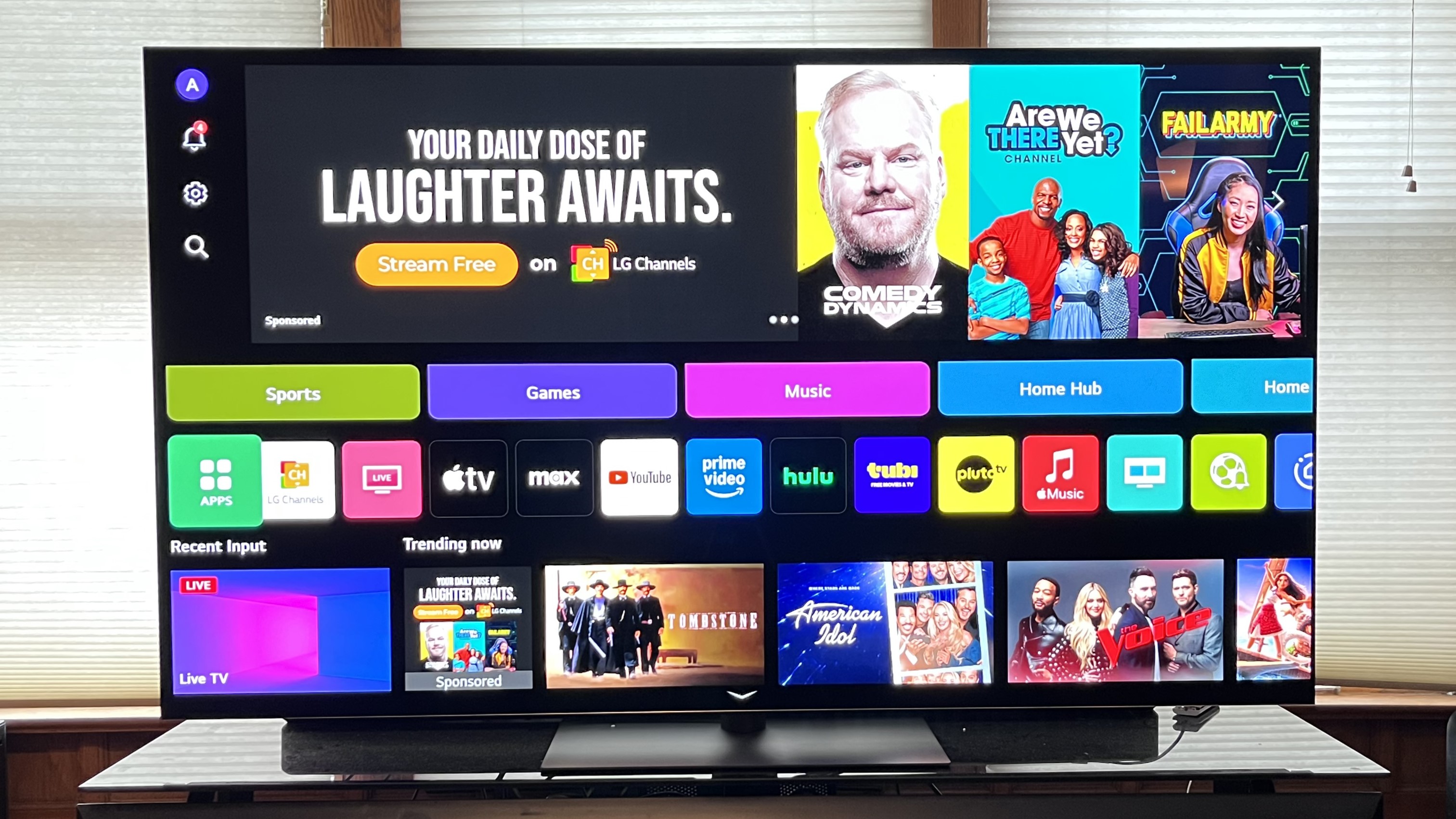
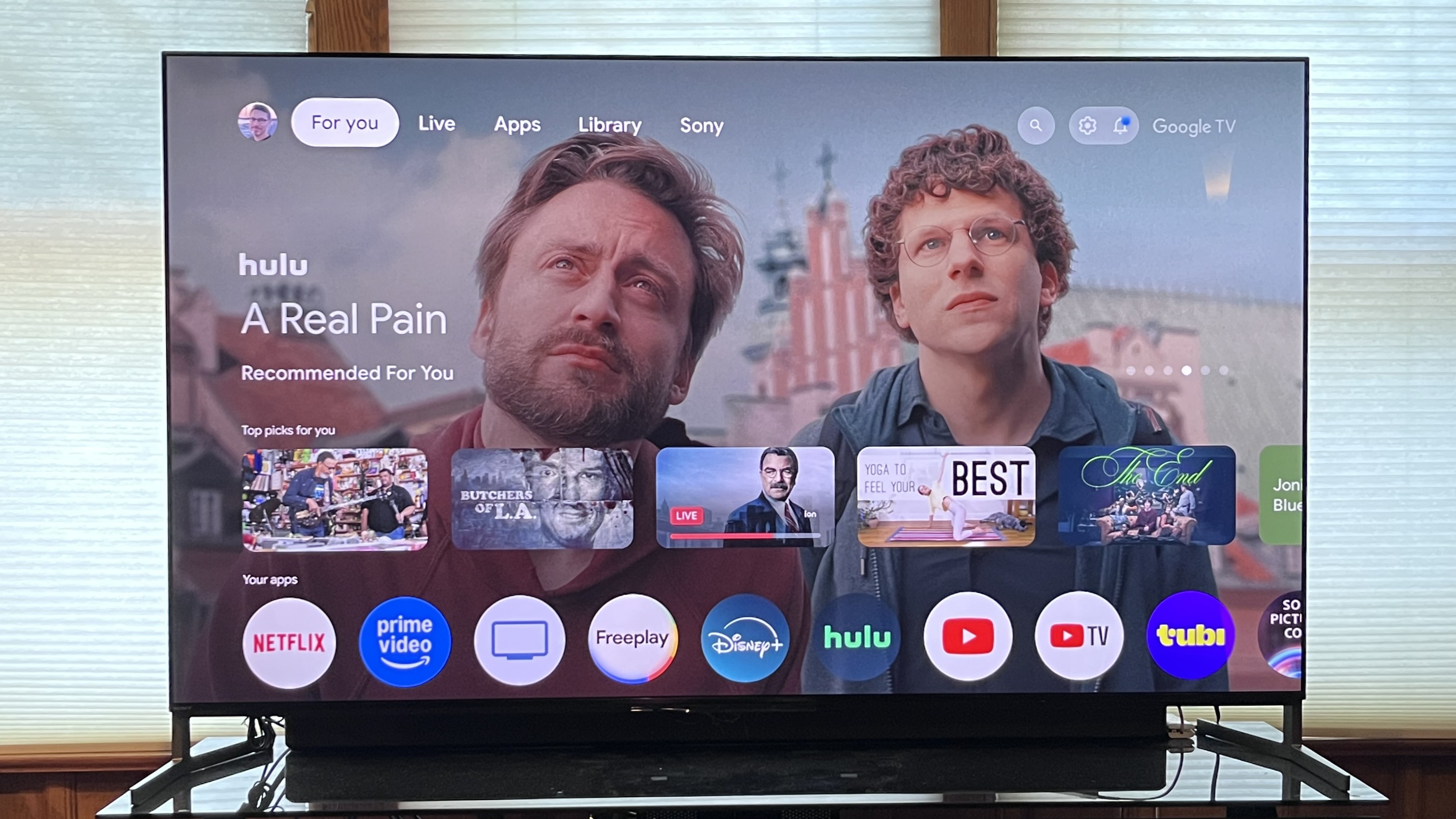
How to set up IPTV on a Samsung Smart TV
- Connect the television to the internet and install any pending software update.
- Press Home on the Samsung remote.
- Open Apps. Sign in to a Samsung account when requested.
- Search for the exact player recommended for your television.
- Check the app name, icon and developer before selecting Install.
- Open the player and enter the supplied login details, or note its Device ID and Device Key.
- Save the details, then fully close and reopen the player.
Do not install an application only because its name looks similar. Several players use nearly identical names, and the wrong application may require a different activation method.
How to set up IPTV on an LG Smart TV
- Press Home on the LG remote.
- Open Apps or the LG Content Store, depending on the webOS version.
- Use search and enter the exact player name.
- Select the correct application, choose Install and then launch it.
- Write down the Device ID, Device Key or MAC address displayed inside the player when required.
- Add the authorised account using the player’s supported login method.
- Return to the television and use Reload, Refresh or restart the app.
The first import can take longer because the player may be loading categories, programme information and on-demand artwork.
How to set up IPTV on Android TV or Google TV
- Open Apps or Google Play.
- Type or speak the exact player name.
- Open the correct result and choose Install.
- Launch the player and select its login or playlist option.
- Enter the details carefully and save them.
- Allow the first import to finish before repeatedly pressing buttons or restarting.
Android TV and Google TV players often allow direct entry of the username, password and server address, which can be easier than using a separate activation portal.
How to set up IPTV on a Fire TV television
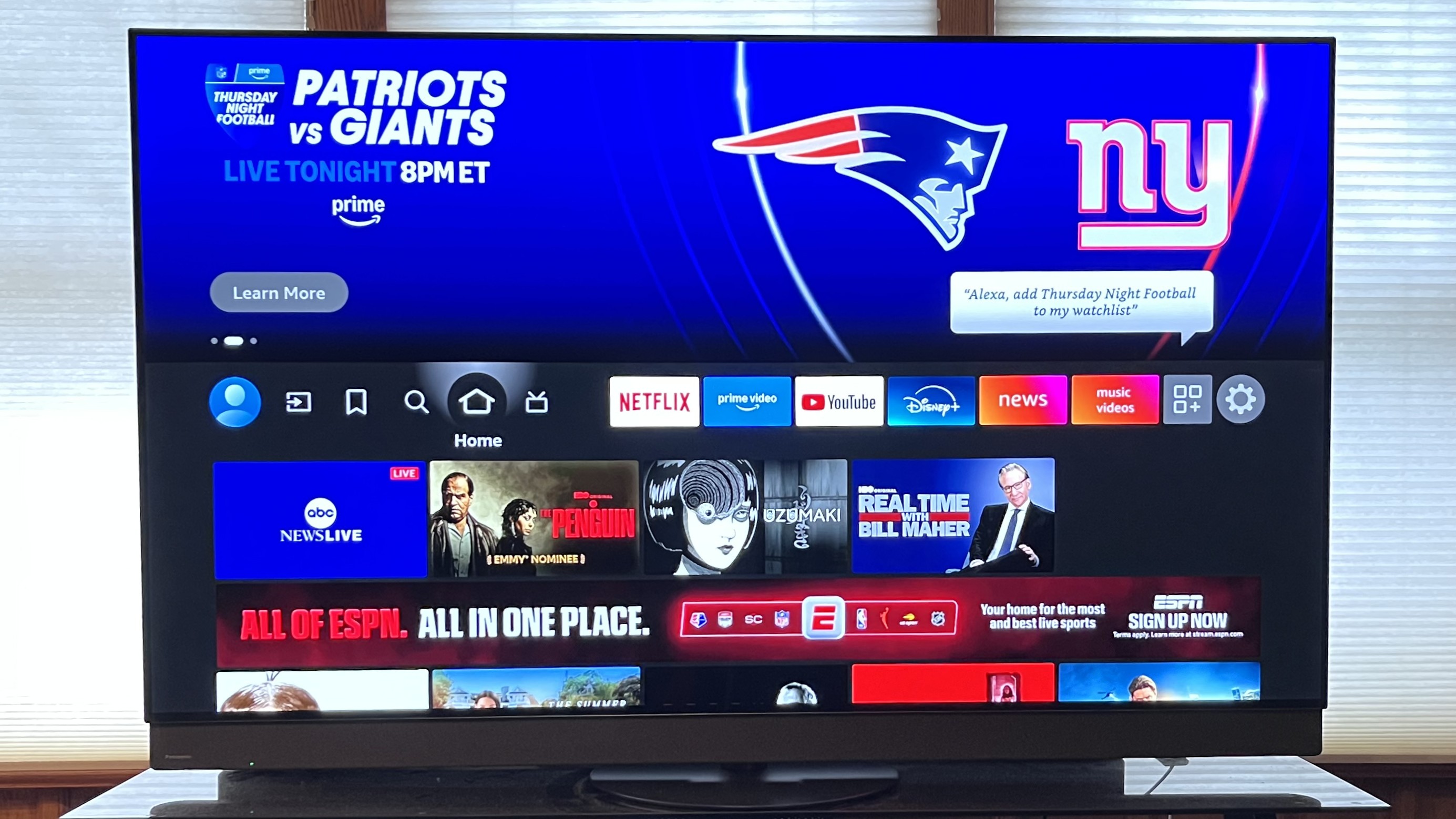
- Open Find or select the magnifying-glass search icon.
- Search for the recommended player.
- Select the correct result and choose Get or Download.
- Open the player and add the authorised login or playlist details.
- Restart the application after saving the account.
Choose the correct login method
Username, password and server address
This is usually the easiest method when the player supports account login directly. Enter the complete server address and check for spaces before or after every field.
M3U playlist URL
An M3U address is normally a long link. Copy and paste it from a phone or computer where possible instead of typing it with the television remote.
Device ID, Device Key or MAC address
Some Smart TV players display device information and require the playlist to be added through the player developer’s official management portal. The player licence and the content service are separate products.
Use only the official portal belonging to the installed player. Do not enter a Device Key or playlist into an unverified third-party website.
Read the player activation and MAC address guide →
App licence required? A player licence is separate from the playlist or subscription. When the app itself needs activation, request player app activation. Use the existing activation guide to confirm the identifier before submitting it.
Common Smart TV setup problems
The player does not appear in the app store
The player may not support the television model, software version or German store region. Use another compatible player or a supported external streaming device instead of changing the television region randomly.
The app says the account is invalid
Check the username, password, capital letters, server address, subscription status and accidental spaces. Confirm that the details were entered under the correct login method.
The playlist saves but nothing appears
Close the application completely, reopen it and use Reload or Refresh. Large libraries can take additional time during the first import.
The app loads but playback keeps stopping
Restart the television and router, test Ethernet where practical and make sure another device is not saturating the connection. Then use the dedicated buffering guide.
The television is slow or the app closes
Remove unused applications, restart the television and check for updates. Older televisions may perform better with an external streaming device.
Frequently asked questions
Can IPTV be installed on every Smart TV?
No. The television must have a compatible player available for its operating system, software version and store region. An external streaming device may be required for older models.
Do I need a Fire TV Stick or Android box?
Not necessarily. Many Samsung, LG, Android TV and Google TV televisions can run a player directly. An external device can offer better app availability or performance on an older television.
Are the player application and the subscription the same thing?
No. The player is the application that displays authorised content. The subscription or playlist supplies the account information. Some players charge a separate application licence.
Where can I find the MAC address?
Open the player and check its start screen, Device Information or activation section. Use the identifier displayed inside the player rather than an unrelated network address in the television settings.
Why does the login work on a phone but not on the television?
The television may use a different app version, login method or network connection. Retype the details, confirm the correct server address and test both devices on the same network.