
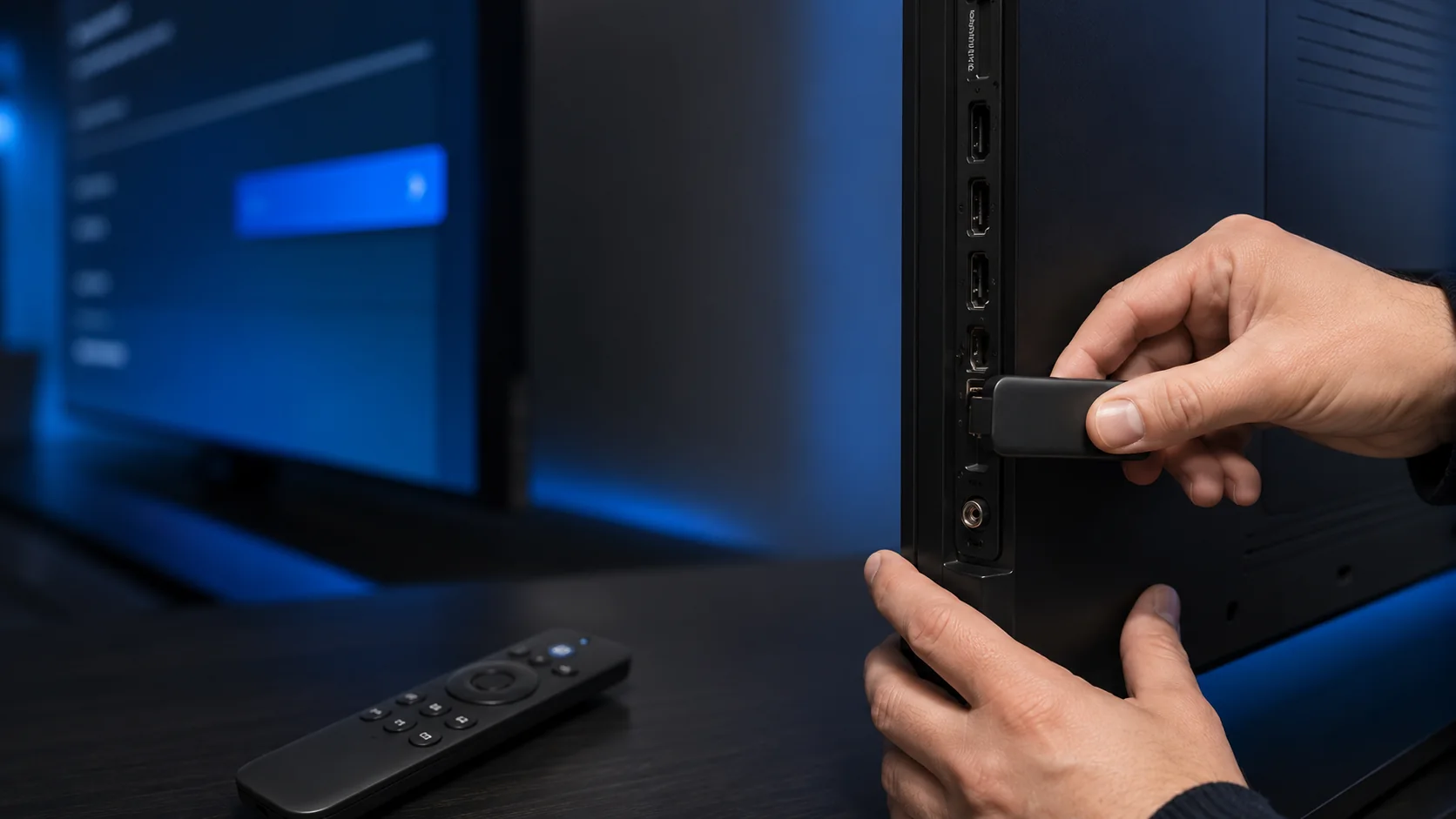
Connect and update the Fire TV, then install a compatible player from the Amazon Appstore. When a legitimate player such as IBO Player or BOB Player is not listed, compatible Fire OS devices can use Downloader to install the APK from the player developer’s official website. After installation, choose the matching login method, enter the supplied details exactly and test playback.
What you need before setting up IPTV on Firestick
Prepare the device and account information before opening the app. This avoids installing the wrong player or clearing data before the login method is recorded.
Player and subscription are separate
The player displays the account or playlist. A player licence does not automatically include channels or extend a separate service account.
Identify and update the Fire TV device
Older models can have less storage or slower menus, but performance depends on the exact device, software, app and network. Check the model through Amazon’s official device-identification guidance rather than guessing from the remote or casing.
- Open Fire TV settings and review the device information.
- Check for a Fire OS update while connected to a stable network.
- Restart the device after updates complete.
- Confirm the date and time are correct before testing login.
Amazon notes that Fire TV devices normally download software updates automatically when connected. Exact menu wording can differ by version.
Install an IPTV app for Firestick from the Amazon Appstore
Start with the Amazon Appstore because it is the simplest installation route and updates are normally handled through the device. Search for the exact player name rather than a general term.
- Open Find or Search. Type or speak the exact media-player name.
- Check the listing carefully. Compare the logo, developer and description with the player’s official website.
- Select Download or Get. Wait for installation to complete, then open the app.
- Check compatibility. Availability can vary by Fire TV model, Fire OS version and German Amazon account region.

Use Downloader only when necessary
When the correct player is available in the Amazon Appstore, install that version. Use Downloader only for a legitimate app whose developer provides an official Fire TV or Android APK.
Install IBO Player or BOB Player on Firestick using Downloader
The Downloader app can open a full web address or a short code and then install an Android APK. This method is commonly called sideloading. It is useful when the legitimate player is compatible with Fire OS but is not listed in Germany Amazon Appstore.
Step 1: install the real Downloader app
- Open Find → Search on Fire TV.
- Search for Downloader by AFTVnews.
- Check the orange download-arrow icon and developer name before installing. Avoid similarly named paid copies.
- Open Downloader once so Fire TV can request the permissions required to save a file.
Step 2: allow Downloader to install an APK
- Open Settings → My Fire TV or Device & Software.
- Open Developer Options. If the menu is hidden on a compatible Fire OS version, open About, highlight the device name and press the remote Select button seven times.
- Choose Install Unknown Apps and switch Downloader to On.
- Return to Downloader. Menu names can differ by Fire OS version.

Step 3: download the player from its official source
- Open Downloader and select its URL or code field.
- Enter the player developer’s official address. Prefer a full official URL because reseller codes can expire or redirect elsewhere.
- Confirm that the domain and app name match before downloading.
- When Fire TV shows the installation screen, select Install.
- After installation, select Done, return to Downloader and delete the downloaded APK to recover storage.
- Open the player from Your Apps & Channels.

| Player example | Safe Downloader approach | After installation |
|---|---|---|
| IBO Player | Use the Android APK published on the official IBO Player downloads page. At review time, the developer lists iboiptv.com/app_downloads/ibop.apk. | Open the app, note its displayed Device ID or key, then add an authorised playlist separately. |
| BOB Player | Open the official BOB Player website in Downloader and use the Android APK link currently provided by the developer. Do not rely on an unverified reseller code. | Open the app, record the identifier shown inside it and use the matching official portal or supported setup method. |
Downloader installs the player, not the television service
Installing IBO Player or BOB Player does not include channels or a playlist. Player licensing, playlist assignment and the separate content account remain different steps.
If the APK will not install
- Confirm that Install Unknown Apps is available and enabled for Downloader.
- Check that the APK is supplied by the real player developer and supports Fire OS.
- Delete an incomplete download and retry from the official address.
- Free storage, restart Fire TV and install pending updates.
- If the device blocks sideloading, choose a supported player from the Amazon Appstore.
Player licence or identifier? If the installed app requires a paid licence, activate a compatible player app. To locate the correct MAC address, Device ID or Device Key first, find the player identifier safely.
Choose the correct Firestick IPTV login method
| Method | What the player expects | Common mistake |
|---|---|---|
| Account or API-style login | Profile name, username, password and complete server/portal address | Pasting an M3U URL into the server field |
| M3U or M3U8 playlist | One complete URL in the playlist field | Missing characters, spaces or line breaks |
| Device portal | The Device ID/MAC and Device Key displayed inside that exact app | Using a network MAC from Fire TV settings or details from another app |

Copy long values where the player supports it. Never publish a playlist URL, password, Device Key or QR code in a public screenshot.
Allow the first import to finish and test in order
Categories, artwork and programme-guide data can load separately. Avoid repeatedly closing the app during the first import.
- Confirm the app opens normally.
- Confirm the account authenticates or the assigned playlist appears.
- Wait for categories to load.
- Play one authorised live item.
- Play one on-demand item.
- Check programme information, audio and subtitles where available.
- Close and reopen the app to confirm the setup remains saved.
Fix common Fire TV IPTV setup problems
| Problem | Useful first checks |
|---|---|
| App missing from search | Check spelling, exact developer, device compatibility and German Appstore availability. |
| App will not open | Restart Fire TV, update the app and system, force-stop, clear cache, then reinstall if necessary. |
| Login rejected | Confirm the login type, remove accidental spaces and recheck the full server URL. |
| Empty categories | Reload the app, confirm the playlist was assigned to this device and allow the import to finish. |
| Black screen or sound only | Test another item, update the player and device, and use documented playback settings only. |
| Low storage or freezing | Remove unused apps, clear cache and restart before clearing app data. |
| Buffering | Compare another item, another app, Wi-Fi and Ethernet, then use the buffering guide. |

Clear cache before clear data
Amazon’s Fire TV guidance says clearing cache can help intermittent app issues. Clearing data can remove logins, playlists and settings, so record the setup first.
Check Fire TV Wi-Fi and Ethernet
Test the connection where the Fire TV is used, not only beside the router. Five-gigahertz Wi-Fi can be faster at shorter range, while 2.4 GHz normally reaches farther through walls. A temporary Ethernet test with a supported adapter is the clearest way to identify weak Wi-Fi.
- Place the router in an open, raised and central position.
- Pause large downloads and other simultaneous streams.
- Compare repeated tests at the normal viewing time.
- Use the internet speed guide for planning targets.
- Use the buffering guide for interrupted playback.
Frequently asked questions
Can every Fire TV model run the same player?
No. App compatibility and availability can differ by model, Fire OS version and account region. Check the player developer’s supported-device information.
Do I need Downloader?
No when the correct player is available in the Amazon Appstore. Downloader is useful on compatible Fire OS devices when the legitimate developer supplies an official APK but the app is not listed in your region.
How do I install IBO Player or BOB Player with Downloader?
Install Downloader by AFTVnews, allow it under Install Unknown Apps, then enter the player developer’s official URL. Install the APK, delete the downloaded file and open the player. Never use an unknown reseller code or assume the installed player includes a playlist.
What is the difference between a player and a subscription?
The player is the application. The authorised subscription or playlist supplies the access details loaded into it. Some players also charge a separate licence.
Why does the account work on mobile but not Fire TV?
The devices may use different apps, login methods, saved details or networks. Compare the exact player and account method before changing the account.
How do I clear a Fire TV app cache?
Open Settings, Applications and Manage Installed Applications, select the app and choose Clear Cache. Menu wording can vary.
Can Fire TV use Ethernet?
Many models can use Ethernet through a compatible adapter. Check the device and adapter specification before purchase.
Why is an app missing from the German Appstore?
The developer may not support the device, Fire OS version or Germany region. Use another supported player instead of changing the account region at random.
Official Fire TV references
- Amazon — Download apps on Fire TV
- Amazon — Fire TV software updates
- Amazon — App crashes or will not load
- Amazon Fire TV Help — applications and device support
- Amazon Fire TV Help — device support
- Amazon Developer — Developer Options and unknown-source controls
- Downloader by AFTVnews — App features and official access
- IBO Player — Official Android download
- BOB Player — Official player website