
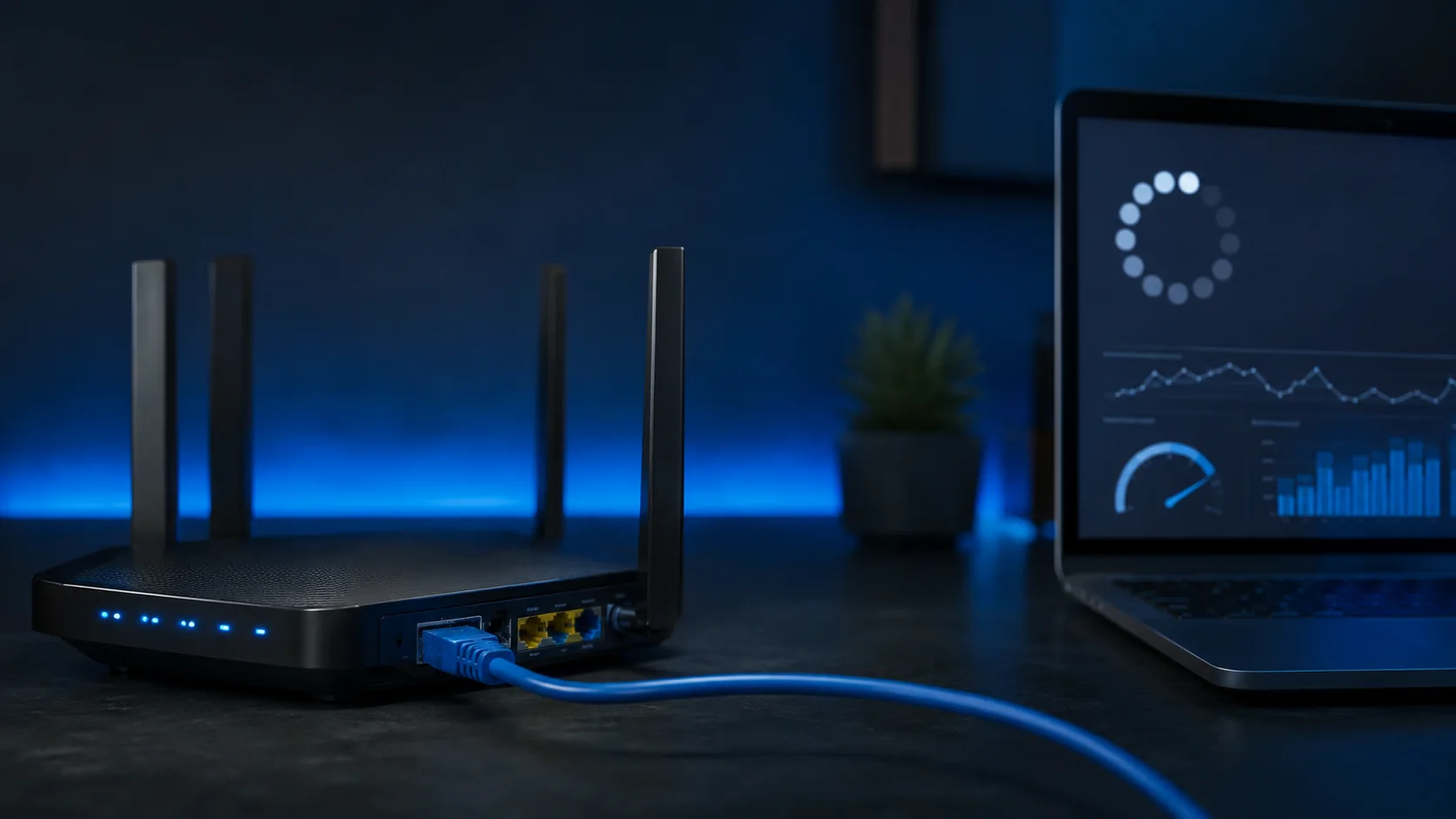
Start by playing another stream and testing the same account on a second device. Restart the player, television or streaming box and router. Then run a speed test beside the television and compare Wi-Fi with a temporary Ethernet connection. This separates a player problem, weak home Wi-Fi, broadband congestion and a source-side issue without changing settings at random.
Fix IPTV buffering by diagnosing the problem first
Buffering can begin at several different points. A two-minute comparison usually shows where to focus, so you do not waste time reinstalling an application when the real issue is Wi-Fi—or changing the router when only one stream is affected.
- Play a different live channel or on-demand item in the same player.
- Try the same account on another device connected to the same router.
- Open a different legitimate streaming application on the television.
- Run a speed test close to the television, not only beside the router.
- Pause large downloads, cloud backups, gaming updates and other streams.
- Use Ethernet temporarily when the television or box supports it.
| What you observe | Most likely area | Start here |
|---|---|---|
| Only one item buffers | The individual stream or source | Try another item and report the affected one |
| Only one device buffers | That device, player, storage or Wi-Fi link | Restart, update and clear the player cache |
| Every device buffers | Router, broadband or household congestion | Restart the router and reduce other traffic |
| Wi-Fi buffers but Ethernet works | Wireless coverage or interference | Improve router position or the TV connection |
| All other apps work normally | The selected player or content source | Refresh the player and contact support with examples |
Best troubleshooting rule
Change only one thing, test for several minutes, and note the result. When five settings are changed together, it becomes impossible to know what actually helped.
Try these 12 buffering fixes in order
- Play another item. This immediately shows whether the issue is limited to one stream.
- Close and reopen the player. Do not leave it suspended in the background.
- Restart the television or streaming box. A full restart clears temporary memory and decoder problems.
- Restart the router. Disconnect its power, wait briefly and allow it to reconnect completely.
- Pause other heavy internet use. Large downloads, cloud backups, gaming updates and several simultaneous streams share the same connection.
- Run a speed test beside the television. A result beside the router does not measure the connection reaching the TV.
- Move the router into a better position. Keep it central, raised and away from cabinets, metal and interfering electrical equipment.
- Compare the available Wi-Fi bands. Five-gigahertz Wi-Fi can be faster at shorter range; 2.4 GHz often reaches farther through walls.
- Test Ethernet. A temporary cable test is the clearest way to confirm whether Wi-Fi is the weak point.
- Clear only the player cache first. Clearing data may remove logins and settings, so use it only when necessary.
- Install player and device updates. Outdated software can cause playback, memory and network problems.
- Contact support with useful evidence. Include the device, player, time, whether other items work and whether Ethernet changes the result.
Avoid factory resets at the beginning
A factory reset removes applications and settings and should be considered only after normal network, application and software checks have failed.
Test the connection where the television is used
Run the test on the television or streaming device when possible. Otherwise, place a phone beside the television and connect it to the same Wi-Fi network. Repeat the test during the period when buffering normally happens.
| Measure | What to look for | Why it matters |
|---|---|---|
| Download speed | Enough stable capacity for the selected picture quality and other household use | Video needs a continuous flow of data |
| Latency or ping | Results that remain reasonably consistent between tests | Large changes can indicate an unstable connection |
| Repeated tests | Similar results at the television and at the times problems occur | One test can hide evening congestion or weak Wi-Fi |
| Other devices | Check whether phones, consoles and computers are downloading heavily | Bandwidth is shared across the home |
A broadband package can look fast on paper while the actual Wi-Fi connection beside the television is weak or inconsistent. Compare several tests before deciding that raw package speed is the problem.

Improve the Wi-Fi connection reaching the television
Ofcom advises placing a router centrally, off the floor and away from objects or electrical equipment that can weaken or interfere with Wi-Fi. A router hidden behind the television or inside a closed cabinet may perform poorly even when the broadband line is working correctly.
- Place the router on a table or shelf instead of the floor.
- Keep it out of closed cupboards and away from metal obstacles.
- Reduce the number of walls between the router and television.
- Keep it away from microwaves, cordless phones and similar interference.
- Test both 2.4 GHz and 5 GHz when both networks are available.
- Consider mesh Wi-Fi only after improving basic router placement.
Do not place the router directly behind the TV
The television, wall and surrounding equipment can obstruct the wireless path. Even moving the router a short distance into an open position can make the connection more consistent.

Use Ethernet as the strongest comparison test
Connect the television or streaming box directly to the router for one viewing session. If buffering disappears, the player and broadband service may be working correctly and the wireless link is the part that needs improvement.
When a direct cable is not practical
- Improve the router’s position before buying additional equipment.
- Use a mesh system when coverage is weak across several rooms.
- Consider powerline adapters only after checking whether the home wiring is suitable.
- Avoid very cheap or damaged network cables that may limit the connection.
Ofcom notes that Ethernet often provides a better connection than Wi-Fi for a device that does not need to move around the home.

Fix player and device-specific buffering
When other devices and applications work normally, focus on the television or player. Restart the device first, check storage and updates, and clear the application cache before deleting its data.
Fire TV or Fire TV Stick
Force-stop and reopen the player, clear its cache, check free storage, restart Fire TV and install available system and application updates. Clearing data normally signs you out, so use it only after recording the login method.
Google TV or Android TV
Open Settings, select Apps, choose the affected player and clear its cache. Restart the television or box and check for system and Play Store updates.
Samsung Smart TV
Cold-boot the television, check Network Status, install software updates and test the wired connection when available. Samsung’s UK guidance also recommends reducing router load and testing another device.
LG webOS television
Restart the television and router, close unused applications, check the network connection and install available television and player updates. Remove and reinstall the player only after simpler checks fail.
Clear cache before clear data
Cache removal targets temporary application files. Clearing data can remove account details, playlists and preferences and may require the complete setup to be entered again.

Know when the problem is not inside your home
A perfectly working home network cannot repair an unavailable source or a wider broadband fault. Collect a few comparisons before contacting support so the problem can be investigated quickly.
- Only one channel or programme fails while others play normally.
- The same item fails on Wi-Fi, Ethernet and a second device.
- The issue begins at a specific time and affects several users or services.
- Your broadband router shows a fault or other internet services also fail.
Information to include when asking for help
- Television or streaming-device model
- Player application name and version
- Approximate time the problem occurred
- Whether other items and applications worked
- Whether another device had the same problem
- Whether Ethernet changed the result
Never send a screenshot that exposes passwords, playlist URLs, Device Keys or private account information.
Frequently asked questions
Why does IPTV buffer when other applications work?
The selected player may have a cache, storage, decoder or update problem, or the affected stream may have a source-side issue. Test another item in the same player and the same account on a second device.
Can fast broadband still buffer?
Yes. The package speed may be sufficient while the Wi-Fi signal reaching the television is weak or inconsistent. Household congestion, router placement, device performance and the selected source also matter.
Is 5 GHz always better than 2.4 GHz?
No. Five-gigahertz Wi-Fi can offer faster performance at shorter range, while 2.4 GHz usually reaches farther and passes through obstacles more effectively. Test both at the television’s location.
Should I clear the player data?
Clear the cache first. Clearing application data can remove login details, playlists and settings. Record the correct setup information before using that option.
Will changing DNS automatically stop buffering?
Not usually. DNS mainly helps devices find internet addresses and does not repair weak Wi-Fi, inadequate bandwidth or an overloaded source. Diagnose the basic connection first.
Does a VPN fix buffering?
It is not a universal solution and can add extra distance, encryption work and latency. Use only lawful services and avoid treating a VPN as a substitute for diagnosing the player, Wi-Fi and broadband connection.
When should I contact the broadband provider?
Contact the provider when several devices and unrelated services are slow, the router reports a line fault, or repeated wired speed tests are far below the expected service level.
Official UK and platform references
- Ofcom: improving your home Wi-Fi experience
- Samsung UK: troubleshooting television internet connectivity
- Google TV Help: clearing cache, updating and restarting
- Amazon UK: clearing application data and cache on Fire TV
Setup support